
Module guide
Any slot can hold a NAM capture, a cabinet IR or one of 55 built-in effects. Each category page lists its modules with their controls, ranges, starting settings and tips; the screenshots show every module at its starting settings.
Five modules have their own pages with more background and recipes: Pedal Drive, Noise Gate (Smart), LoFi Tape Machine, Cosmic Echo and Cabinet IR processing.
The module editor
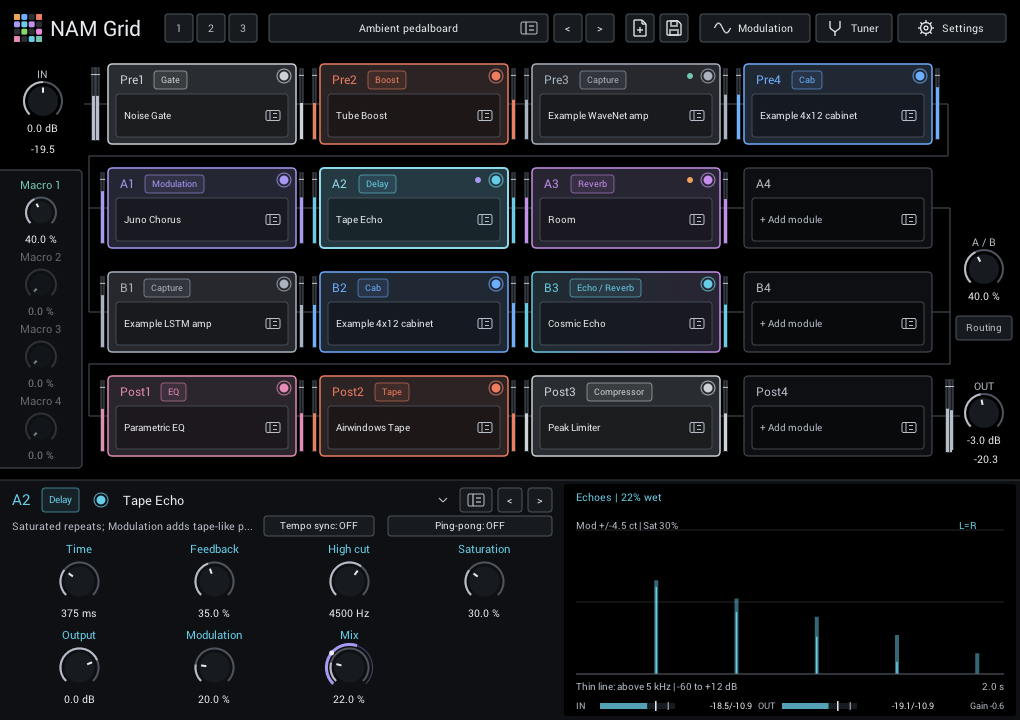
Select a module in the grid to edit it below. Every module uses the same layout: name, navigation and an enable/bypass circle at the top, header options such as Style or Tempo sync, up to eight knobs, and a display with input/output meters in its footer. See Shape a module for how to use it.
Every knob and Enabled can be automated by your DAW. Other header options are saved with the rig but cannot be automated.
Starting settings
New modules start with electric-guitar settings that make the effect easy to hear without burying the dry sound. Each category page lists them next to every control.
- Adding or replacing a module applies its starting settings; double-click a knob to return to its starting value. Saved rigs, projects and Copy/Move/Swap keep your exact settings.
- Outputs start at unity unless a module lists an offset, such as Distortion's -6 dB. Cabinet IRs start at -18 dB, the usual cabinet headroom; IRs vary, so match them with the level meters.
- NAM captures, Guitar EQ, Parametric EQ and Utility start neutral. Thresholds and makeup depend on your instrument and interface, so set them by ear.
Acoustic guitar: start with neutral EQ and a low Room or Dense Plate mix, and reduce or bypass gates if they trim finger noise or sustain.
Bass: lower Cut EQ's Low cut to about 30–45 Hz or turn it off, keep delay and reverb mixes low, and give Mono Octaver less sub level.
Common controls
| Control | What it does |
|---|---|
| Mix | Balances dry sound and effect. 0% is dry; 100% is fully processed. Output applies after Mix. |
| Output | Sets the module's final level. Match the bypassed volume for a fair comparison. |
| Drive / Input | Pushes a saturating stage harder for more distortion or colour. |
| High cut / Low cut | Removes treble or bass from the processed sound. |
| Damping | Controls how quickly reverb treble fades; lower is darker. |
| Modulation | Adds delay-line or pitch movement. |
| Feedback | Sends sound around again for more repeats or resonance. |
Some Airwindows controls are relative amounts in percent rather than frequencies or times; their descriptions say so.
Tempo sync
Delays, modulation effects and Stutter offer Tempo sync in the header. When it is on, Division replaces Time or Rate: choose 1/32 to 1/1, including dotted notes and triplets. Without a DAW tempo, sync uses 120 BPM. Your manual setting stays stored for when you turn sync off.
Read the display
Displays fall into three groups:
- Live audio: input/output histories, spectra, gain reduction and measured responses.
- Response curves: EQ, filter, drive and compressor shapes.
- Timing guides: repeats, reverb decay and modulation shapes drawn from the current settings, not a live LFO position.
The meters in every module display footer compare its input and output; see displays and meters. Turn all displays off in Settings > Visualizations without changing the sound.