
Library browser
Find effects, NAM captures, cabinet IRs, and rig presets in one place. You can listen before deciding: slot choices are auditions until you apply them.
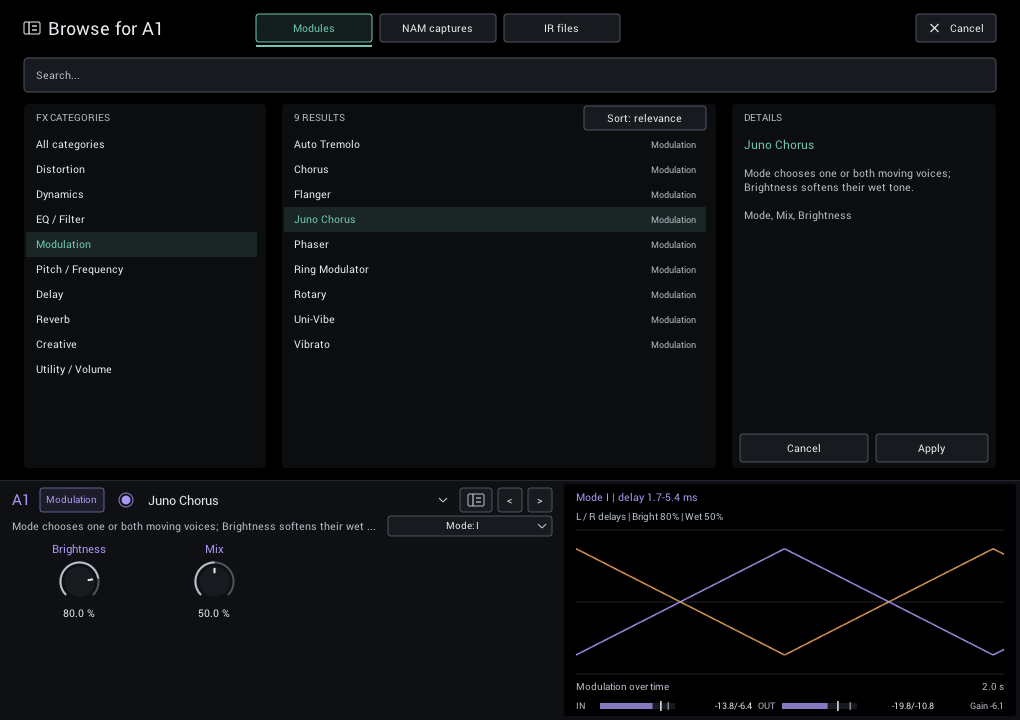
Open the right browser
- Click + Add module or a module name to choose something for that slot.
- Click the browser icon in a module editor to jump to its current category or folder.
- Click the preset name in the header to browse complete rigs.
- Open Settings > Browse library to search all sound content.
The slot browser offers Modules, NAM captures, and IR files. The preset browser handles complete .ngrid rigs; it does not change individual slots.
Browse and audition
Choose a folder or category, then select a result. The details pane describes the selection and shows capture metadata or a module's controls.
For modules, captures, and IRs:
- Select a result to hear it in the current slot.
- Adjust the module below the browser while comparing.
- Choose Apply, press Enter twice from search, or double-click to keep it.
- Choose Cancel or press Escape to restore the original module and settings.
Each effect you audition keeps its temporary adjustments during that visit. Capture and IR changes retain comparable gain settings. Closing the plugin window also cancels an unapplied audition.
Use Open file... for a capture, IR, or preset outside your library. This does not add its folder as a permanent source.
Search
Search matches filenames, paths, preset names, and available NAM metadata. All ordinary words must match; common Latin accents are ignored, so grun finds Grün.
| Example | Finds |
|---|---|
vox clean | Items containing both words |
"silver clean" -bright | That phrase, excluding bright |
maker:vox model:ac30 | Matching capture maker and model |
path:"amp heads" -name:test | A folder phrase, excluding test filenames |
Use name: for filenames and gear: for capture type. Relevance sorting puts exact filename matches first; Sort: name switches to alphabetical order.
Ctrl/Cmd+F focuses search. Use Up/Down, Page Up/Down, Home/End to move through results. Enter accepts a choice; while editing search, the first Enter finishes the edit and the second accepts. Escape first leaves search editing, then cancels the browser.
Presets
The preset browser works the same way, except that selecting a rig does not audition it: your sound changes only when you choose Load, press Enter, or double-click. Delete... permanently removes the selected preset after confirmation. Saving is covered in Rig presets.
Library folders
NAM captures, cabinet IRs and rig presets each have their own list of folders. Add or remove them in Settings; Manage folders in the browser opens the same page.
- Each folder is scanned only for its own file type:
.nam,.wavor.ngrid, including subfolders. Add a mixed folder to more than one list if needed. - Open shows a folder in Explorer or Finder. Remove stops scanning it without deleting anything.
- Use Rescan all (or Rescan in the browser) after adding, moving or renaming files. Startup rescan does this whenever NAM Grid starts.
- Missing or invalid files are reported; NAM Grid never silently substitutes another sound.
Until you choose your own folders, NAM Grid uses these in your Documents folder:
| Folder | Contains |
|---|---|
NAM Grid/NAM Captures | The bundled RiffSmith Clean capture |
NAM Grid/IRs | A place for your cabinet .wav files |
NAM Grid/Presets | The Empty and Clean Default rigs |
Your folder choices belong to you, not to a rig or DAW project, so loading a preset never replaces them. If you remove every folder from a list, NAM Grid remembers that and does not recreate the defaults.
Excluding files with .ignore
Put a .ignore text file in a library folder or subfolder to hide files from scans, browsing, and previous/next navigation. Its patterns work like .gitignore. On Windows, .ignore.txt is accepted too. Rescan after editing it.
# Hide work folders and exports
Catalog/
_Export/

# Hide direct-input captures, except one
*DI.nam
!Keep DI.nam

# Hide only this top-level file
/notes.nam- One pattern per line; blank lines and
#comments are ignored. *matches within a name,?one character, and**any number of folders.- A trailing
/matches folders only. A leading or middle/anchors the rule to the.ignorefolder. !re-includes a match from an earlier rule. Deeper.ignorefiles and later rules take priority.- Matching ignores letter case. Escape a leading
#or!with\.
Rules apply only inside the configured library folder containing the .ignore file. A file above that folder is not read.