
Getting started
From download to your first sound in a few minutes. You need a DAW that hosts CLAP or VST3 plugins, and an audio interface to connect your guitar.
Download
Download the archive for your system from GitHub Releases, under Assets:
| Platform | Archive | Requirements |
|---|---|---|
| Windows x64 | nam-grid-windows-x64.zip | 64-bit Windows |
| macOS Apple Silicon | nam-grid-macos-arm64.zip | macOS 11 or newer |
| Linux x64 | nam-grid-linux-x64.zip | glibc 2.35 or newer (Ubuntu 22.04+), X11 or XWayland |
Each archive contains nam-grid.clap, the nam-grid.vst3 bundle, ThirdPartyNotices.txt and a notices/ folder. Keep the notices with the plugins if you pass them on.
Linux is an early preview
The Linux build passes the automated tests but has seen little use in real DAWs yet. Start with a moderate buffer size, and please report what you find.
Install the plugin
Extract the archive and copy the plugin into a folder your DAW scans. CLAP and VST3 sound the same; install the format your DAW supports. For VST3, copy the whole nam-grid.vst3 bundle, not just a file inside it.
| Platform | CLAP | VST3 |
|---|---|---|
| Windows | C:\Program Files\Common Files\CLAP\ | C:\Program Files\Common Files\VST3\ |
| macOS | ~/Library/Audio/Plug-Ins/CLAP/ | ~/Library/Audio/Plug-Ins/VST3/ |
| Linux | ~/.clap/ | ~/.vst3/ |
Any other folder works too if you add it to your DAW's plugin scan paths. On Linux, file dialogs use GTK 3 when it is installed.
macOS: allow the plugin
The Mac build is not yet signed with an Apple Developer ID, so macOS blocks downloaded copies. After copying, clear the quarantine flag once in Terminal:
xattr -dr com.apple.quarantine ~/Library/Audio/Plug-Ins/CLAP/nam-grid.clap
xattr -dr com.apple.quarantine ~/Library/Audio/Plug-Ins/VST3/nam-grid.vst3
Run the line for each format you installed.
Updating
To update, replace the plugin files with the new version. Your rigs, projects and library folders keep working.
Add NAM Grid to a track
- Rescan plugins in your DAW and insert NAM Grid (vendor Simon Heimler) on an audio track.
- Select your guitar input on that track and enable input monitoring (in many DAWs: arm the track for recording).
- Use a stereo track, or let your mono guitar input feed one, so that stereo delays and reverbs stay wide.
- For playing through the plugin, a small audio buffer keeps latency low. If you hear crackles, raise the buffer size; see troubleshooting.
Make your first sound
A new NAM Grid starts with an empty grid. On first start it also creates a library in your Documents folder, Documents/NAM Grid, with one clean amp-and-cab capture (RiffSmith Clean) and two rigs, Empty and Clean Default.
- Click the preset name in the header to open the rig browser.
- Select Clean Default and choose Load.
- Play. Turn IN (left of the grid) to set how hard you drive the rig, and OUT for your listening volume.
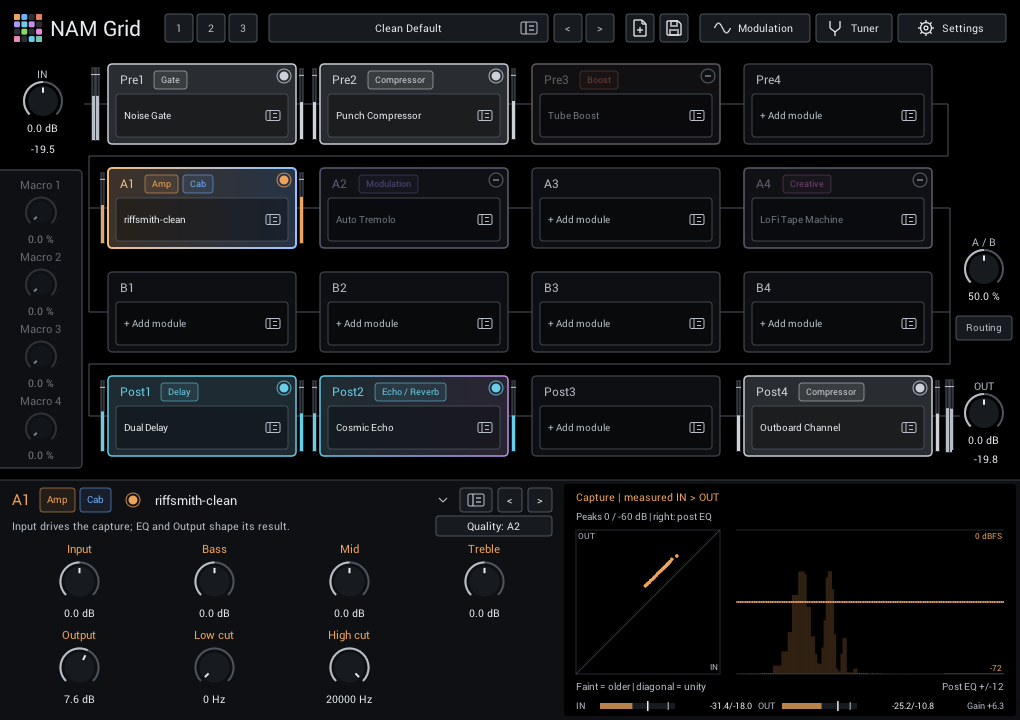
Clean Default shows a typical layout: a noise gate and compressor in Pre, the amp capture in lane A, and a delay, an ambient echo and a console channel in Post. Click any module to see and change its controls below the grid.
Build your own rig
- Add your captures and IRs. NAM captures are
.namfiles; cabinet impulse responses are.wavfiles. TONE3000 hosts a large collection of free ones. Open Settings and add your folders with + NAM folder and + IR folder. - Load an amp. Click New for an empty grid, then click an empty Pre slot, choose NAM captures, and select a capture to hear it. Double-click it or press Apply to keep it.
- Add a cabinet if needed. A full rig capture already includes a cabinet. An amp head or direct capture does not: load a Cabinet IR in the next slot.
- Add effects. Try a gate, boost or drive before the amp, and EQ, modulation, delay and reverb after it. See typical placement.
- Try the parallel lanes. Put a chain in lane A and another in lane B, then use A/B to blend them: 0% is A only, 100% is B only.
- Save your rig. Click Save and choose a name. Your rig is also saved with your DAW project.
Where to go next
- Editor: the parts of the window and how to adjust modules.
- Grid & routing: signal flow, parallel lanes and the routing page.
- Library browser: search, audition and organize your captures, IRs and rigs.
- Module guide: every module, its controls and starting points.
- Modulation & scenes: bring a rig to life and switch sounds while you play.
- Troubleshooting & FAQ: if something does not work as expected.